Visit the link below to view the Web Specification, which includes tutorials on how to customize various aspects of your rcona.org WordPress site. If you do not already have access, request access through me by supplying your email address, and I’ll let you in.
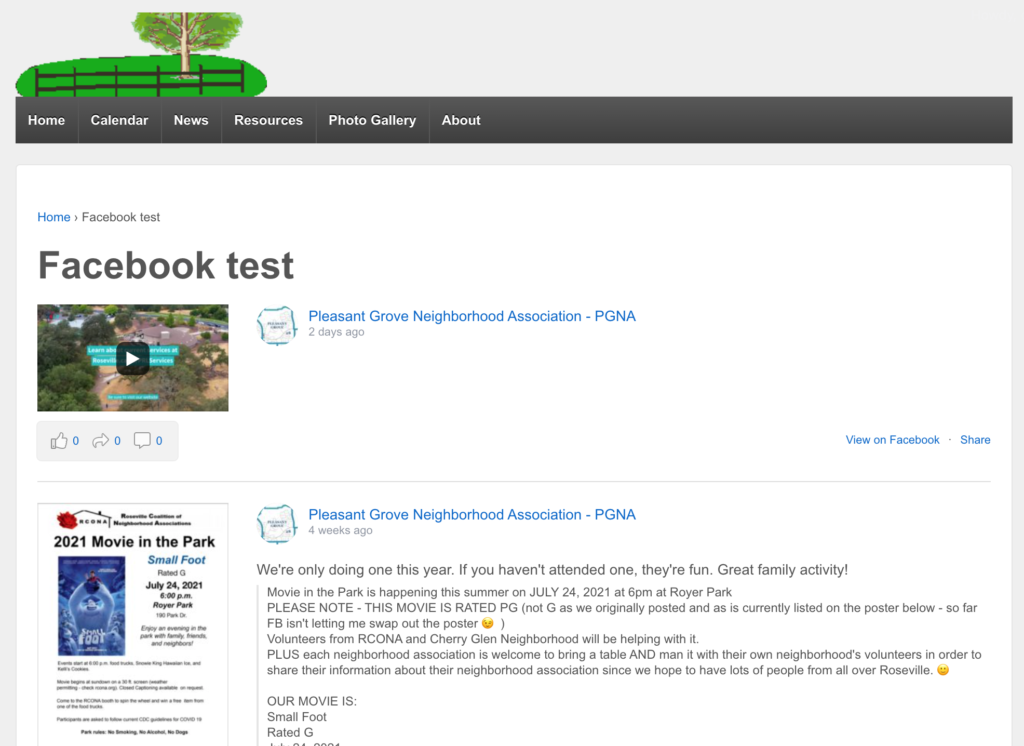
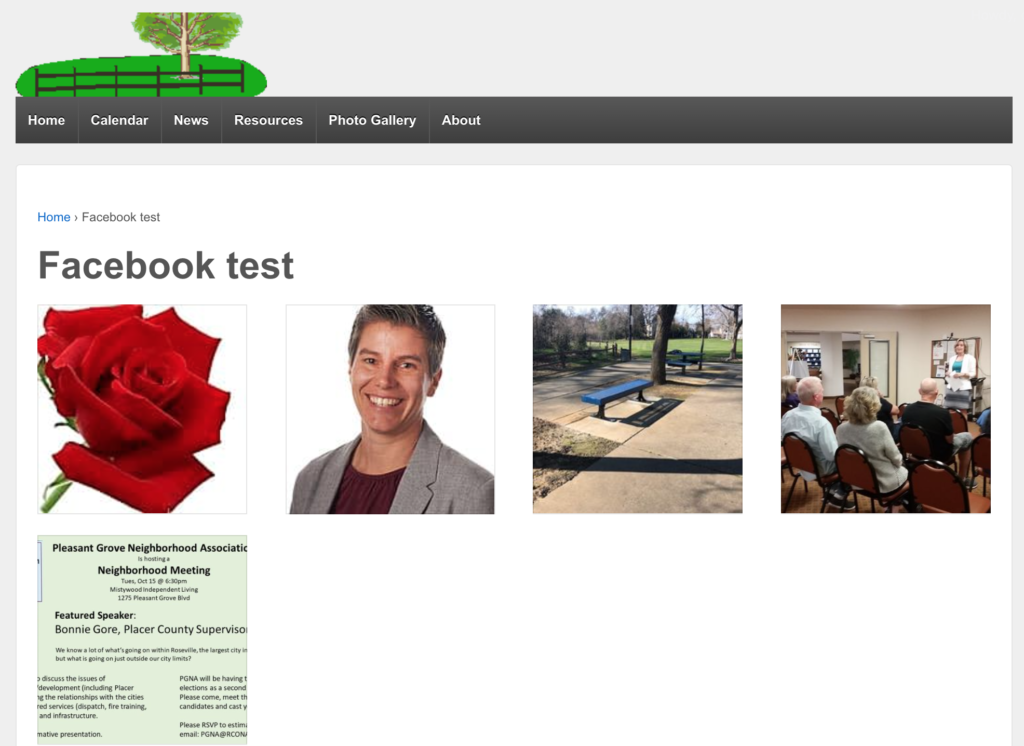
I have begun helping a few NA’s with integrating their existing or new WordPress sites with a plugin that will automatically pull in their Facebook content to be displayed right on their website’s pages. This includes Facebook posts, photos, events, videos, and so on. And it’s Multisite compatible, so anyone currently equip with a WordPress site can start using it now if they want.
People have already used Facebook windows (“iframes”) on their site before, and this gives you a simple view of your page’s feed. That’s fine for some people I suppose, but for those who want a website in addition to their Facebook page, but don’t want to worry about constantly making sure content is always matching between their website and Facebook page (e.g. photos or events don’t match), then this solution is probably the easiest, and gives you the best of both worlds. It allows you to have a website separate from your Facebook page, but also pull in content from it, so both constantly stay synchronized. You only have to update your Facebook page for most of your content, and the rest is automatically synchronized on your behalf. Both mirror each other at all times.
Showing Facebook posts on your WordPress websiteShowing Facebook photos on your WordPress website
And I’d show you what displaying events would look like as well, but none of the NA’s that are currently using this have posted any events on their public pages yet.
This plugin only works with pages or groups that are public. Private groups for example cannot be pulled from, by virtue of the fact they are private in the first place. If you want to use what I’m showing you here, then you need to have either a public page or group first.
This takes care of most of your content, but not quite all of it. (Unless perhaps you’re one of the fewer groups out there that upload PDFs directly to a Facebook posts.) You still need to upload your documents (meeting minutes, newsletters, PDF flyers, and so on) somewhere. If that’s not your Facebook page, then it should at least be on your WordPress website. You can (and should) still upload posts to your WordPress site like those mentioned. I have a tutorial video on how to do that if you’re not sure how to. But then you’re back to the issue of both pages matching. You could manually tell people on your Facebook page that you’ve uploaded a new newsletter every single time you do so, but wouldn’t it be easier if your WordPress site could automatically do that in the other direction as well? Then it would be bidirectional. You could post
Per an email forwarded to me, RCONA had decided on the names of some new neighborhood associations (NA’s) that have been created on the west side of town. I had already uploaded the PDF version of the map to rcona.org → My Neighborhood → Maps & Links, but it’s been brought to my attention that the new NA’s are not showing up in the ArcGIS interactive map viewer that I had added to the Find my neighborhood page previously.
Originally, I had “forked” (clicking “I want to use this → Create a Map”) the NA map provided by the City of Roseville’s GIS Data Portal not only in order to generate an “iframe” (code embeddable to a website in order to show the map within rcona.org so you didn’t have to leave our page), but also to color code the NA’s, since they weren’t already.
It appears that the neighborhoods did already add themselves to my existing map, apparently by means of relying on a common map “source” (“ArcGIS World Geocoding Service” and/or “PropertyInformationToolLayers – Neighborhood Association”), linked from their map that continues to get updated over time. You could click on one of them on my map, and get their attributes that were added after I “forked” this map, coming from their map. But those new NA’s were not getting automatically color-coded, since the “Layer Styles” remained under my control of the forked map. This dynamic would also apply in the case of existing NA’s that get modified, which can be seen in the case of “Cherry Glen” and “Theiles Manor” getting split into two separate NA’s. The NA’s themselves were updated automatically, but not the styles.
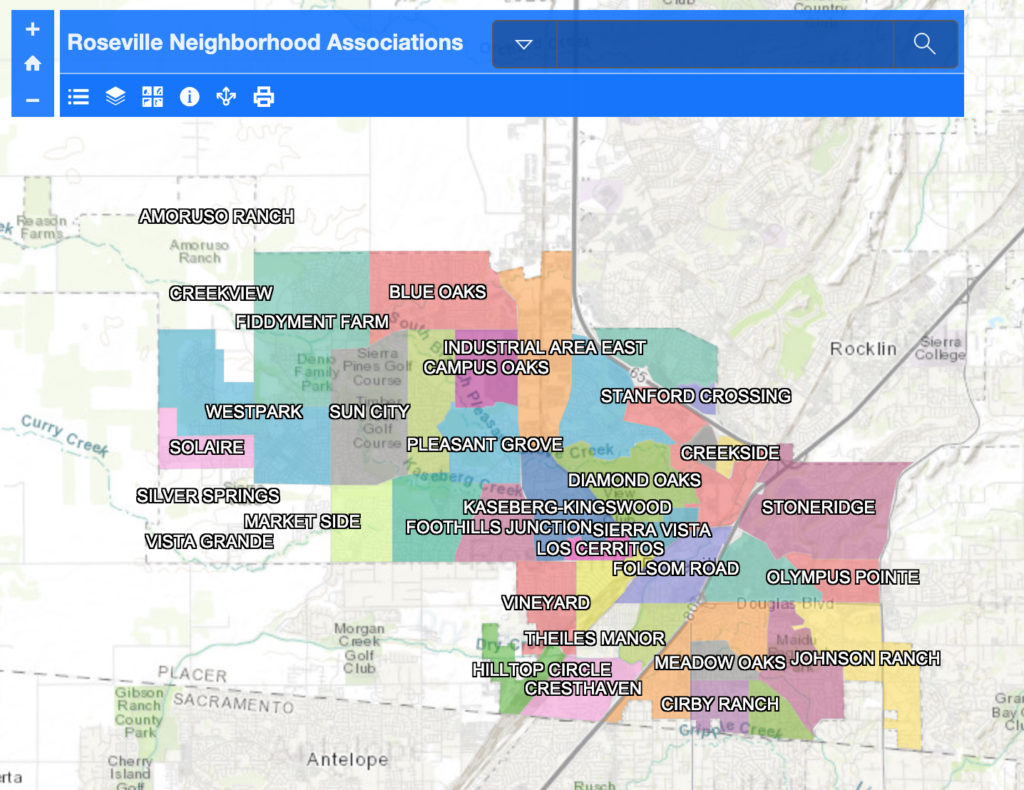
(Old map) For example, “Silver Springs” on the far west side now shows up automatically, and even has its boundaries traced in dotted lines. But is not color-coded yet. Cherry Glen/Theiles Manor lost its color-coding since it was modified (south of Folsom Road).
After discussing with the City’s map designer how to proceed with updating this map, he had replied to my email showing me how repeat his steps to edit my map attributes to reassign the color-coding in the Layer Styles. That would regenerate the color coding for these new NA’s so they’re easily seen like the other ones. My old map didn’t seem to have the same editing capabilities that it did before, so I forked the City’s map again and began working with the Layers and Layer Styles from there.
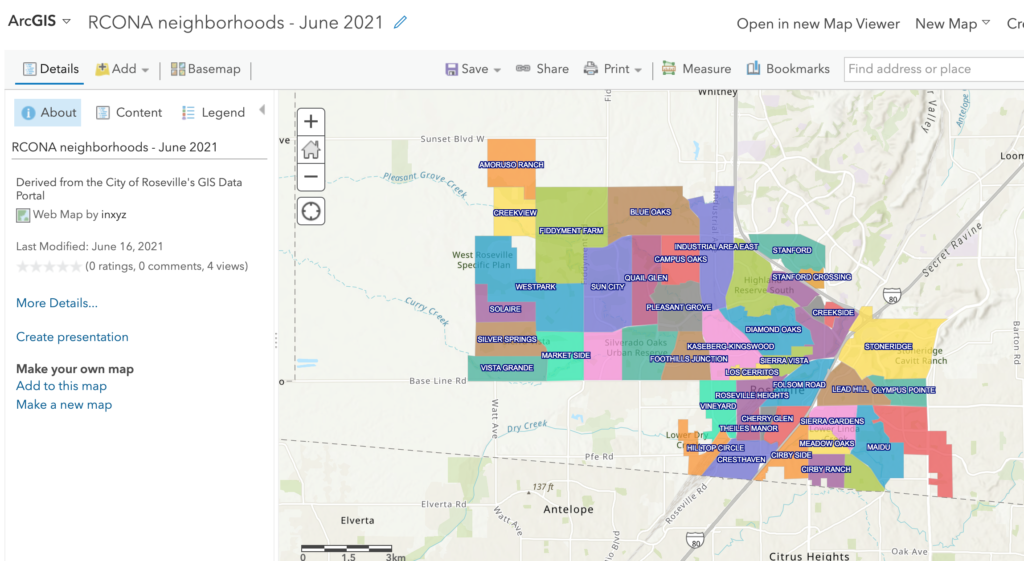
(New map) This time, the neighborhoods are correctly color-coded, and the “extent” (zoom factor) is set to show the entire map uncropped upon viewing.
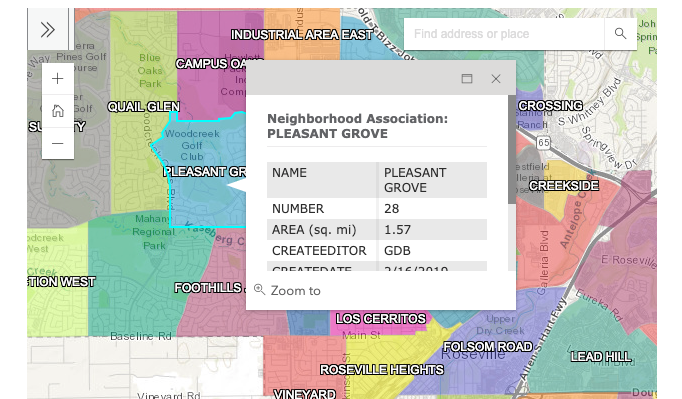
That did the trick. But there was one other thing that I wanted to tackle previously, but couldn’t figure out how to do it before. Since this is an interactive map, if you click on one of the neighborhoods, you would get a pop-up box that lists some information that came from the original map developer:
(Old map) Clicking on a neighborhood gives you some information, like the name, total square miles, etc.
Except for the name of the neighborhood itself, the only other thing that might be interesting to residents is the total area in sq. mi. But are these fields customizable to me, so I can put my own information inside the list of “attributes”? It would be great to provide a link to a given NA’s website, if they have one.
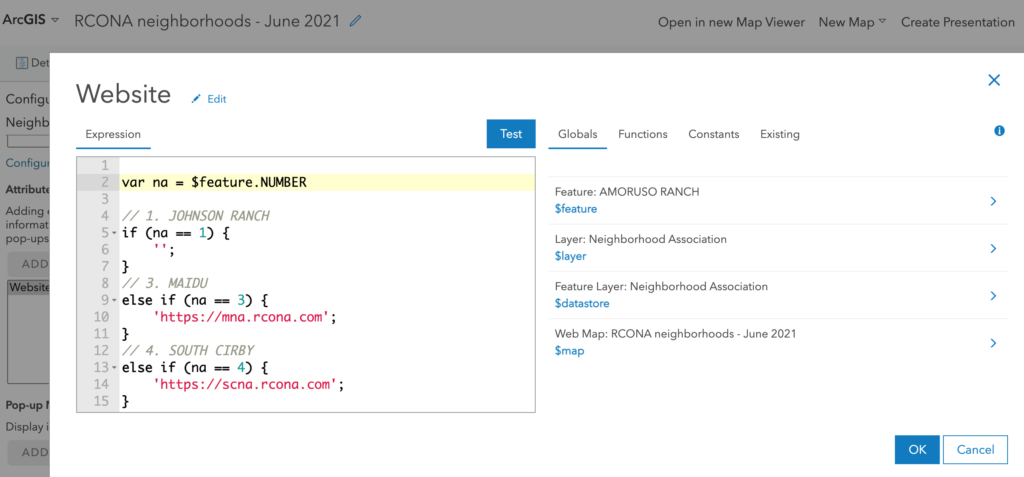
It turns out, yes you can, using Esri’s “Arcade” language for ArcGIS. In my forked map, I found an option to customize the pop-up box that shows up any time you click on an NA. From there, I added a custom “attribute expression”, using their programming language to conditionally select NA’s based on their numerical ID, and provide a link to their website if one exists.
(New map) ArcGIS Arcade code to selectively show website addresses for NA’s upon clicking pop-up box
Now if you click on a pop-up box, you’ll get a link to a website for those who have one.
The City of Roseville employee who I talked to recently mentioned he was working on publishing another interactive map for “Finding my Fire District”, so if you’re interested stay tuned, as I’ll see if I can get that posted to our site as well.
Using my automate.io account, I have setup an automation to forward all posts made to my WordPress site over to a Facebook page. This “action” itself can be done for free, but view my pricing page for more information about the limits to their free plan if you’re doing more than just this action.
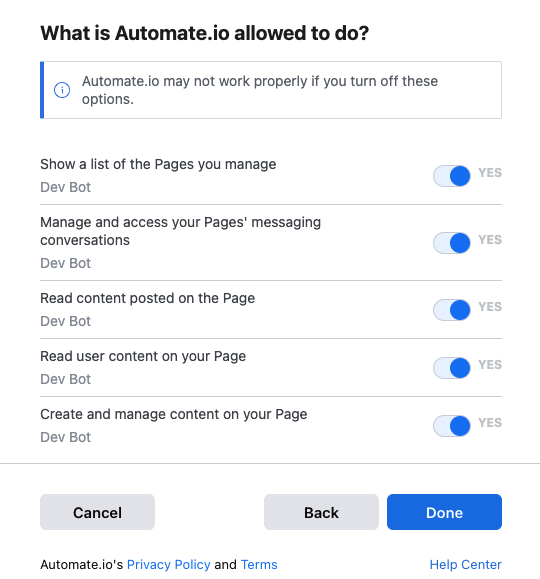
Connecting to a Facebook account prompts you with which permissions you’ll authorize
automate.io ⇄ Facebook Pages
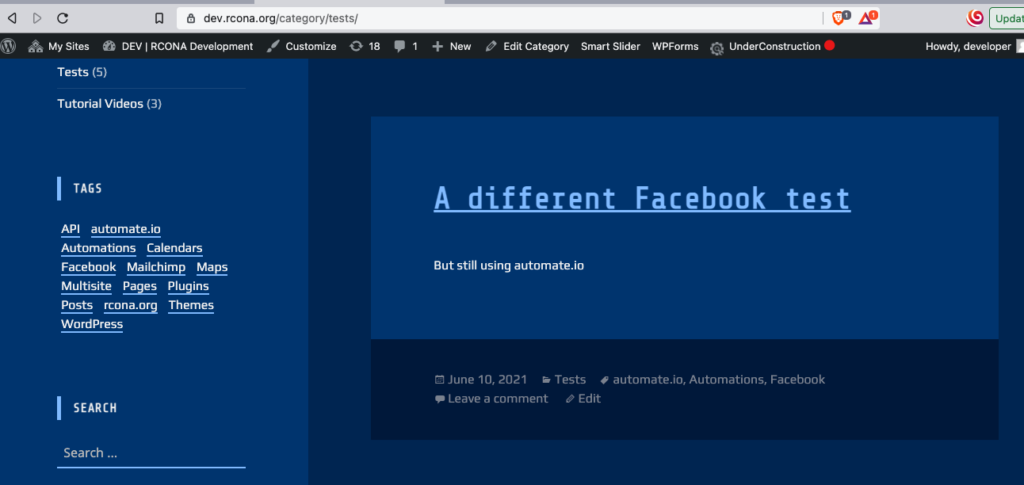
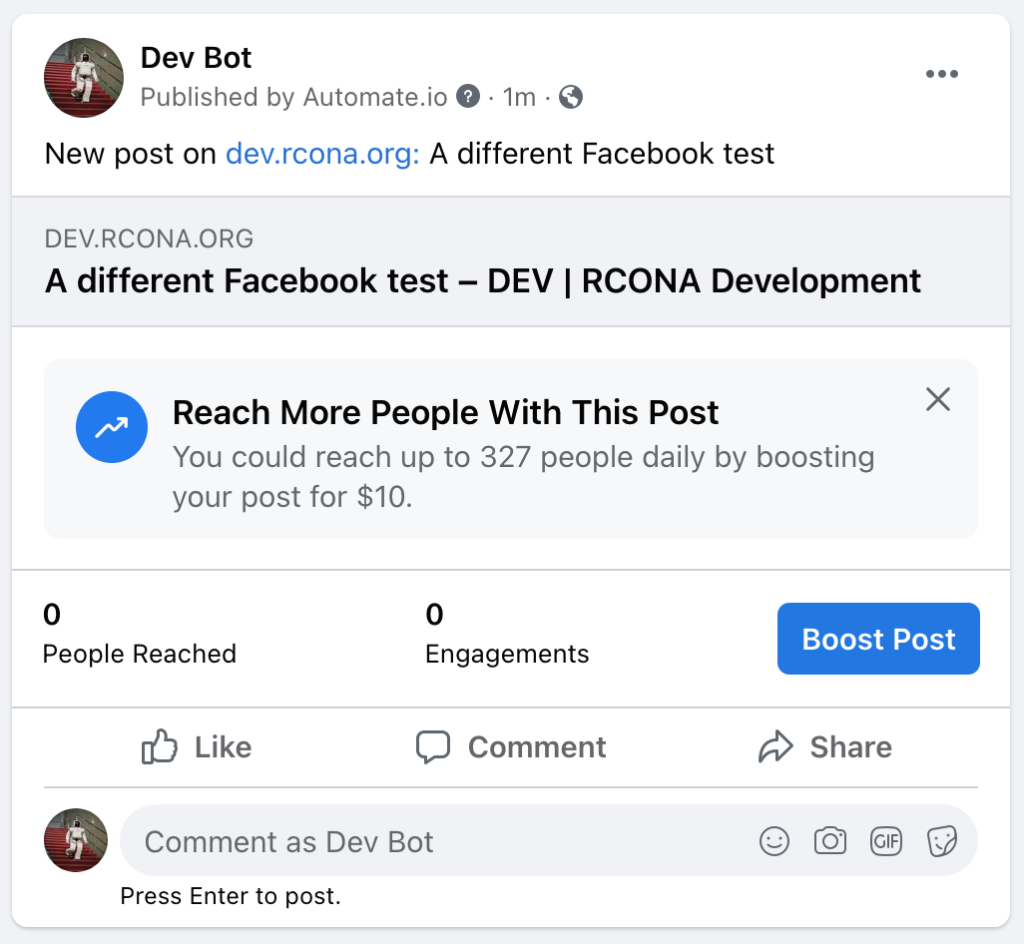
Once I connected my page, it asked me to create a sample post so it could verify the bot was able to successfully perform the action. It did, and here’s what it looks like on both ends:
What the new post looks like on dev.rcona.orgWhat the new post looks like on the Facebook page
Takeaway: Now this means you can connect your own neighborhoods Facebook page to your website, and your new meeting minutes, newsletters, flyers, and more will automatically get posted without you needing to do it yourself!
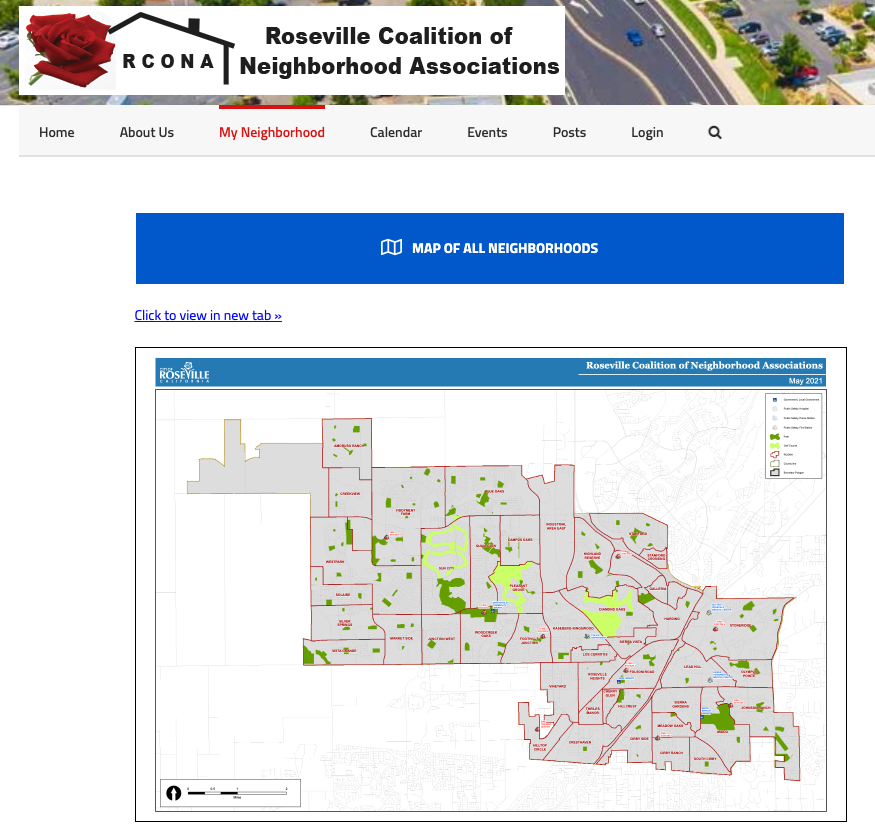
On rcona.org → My Neighborhood → Maps & Links, I updated the “Map of all neighborhoods” at the top from an old 2016 version to a May 2021 version that includes the newly approved NA names on the west side of town (e.g. Market Side, Silver Springs, etc.)
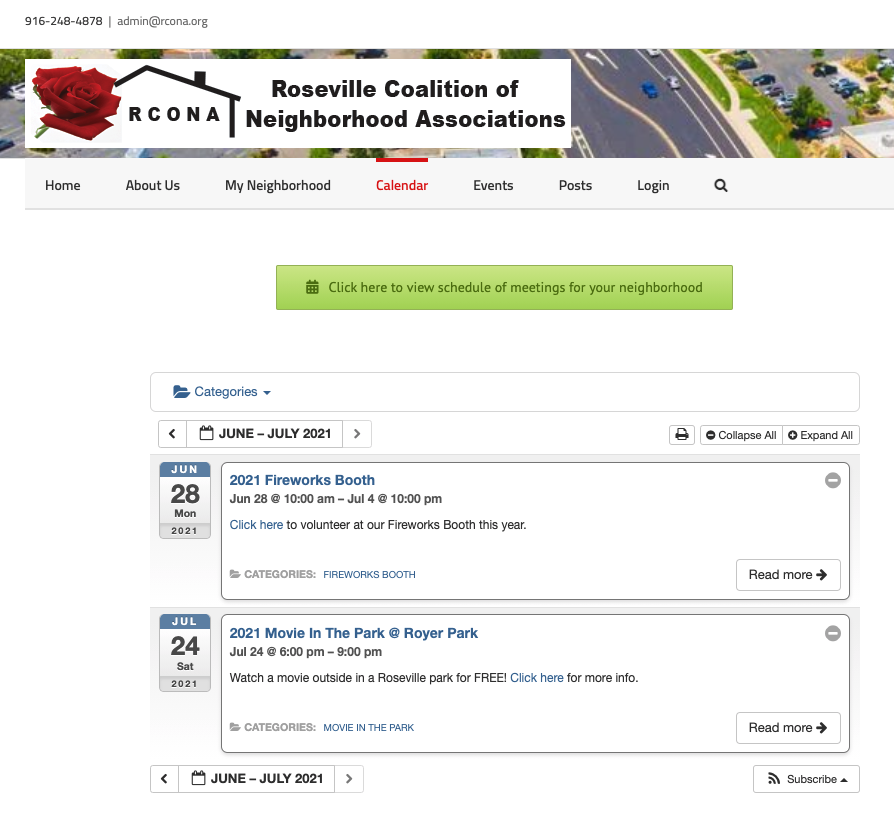
Because we’ve got some upcoming events in the second half of 2021, I added the ones occurring at the org level to rcona.org (the fireworks booth & MITP.) This is not the long-term API solution that will connect all calendars together between NA’s, but it is something that will get us by for now while we work on that.
Currently, meeting.rcona.org is maintained separately from WordPress altogether. I added a green button above the calendar page saying “click here to view schedule of meetings for your neighborhood” to show people that finding their meeting info on rcona.org is separate from the calendar page, which only shows events for now.
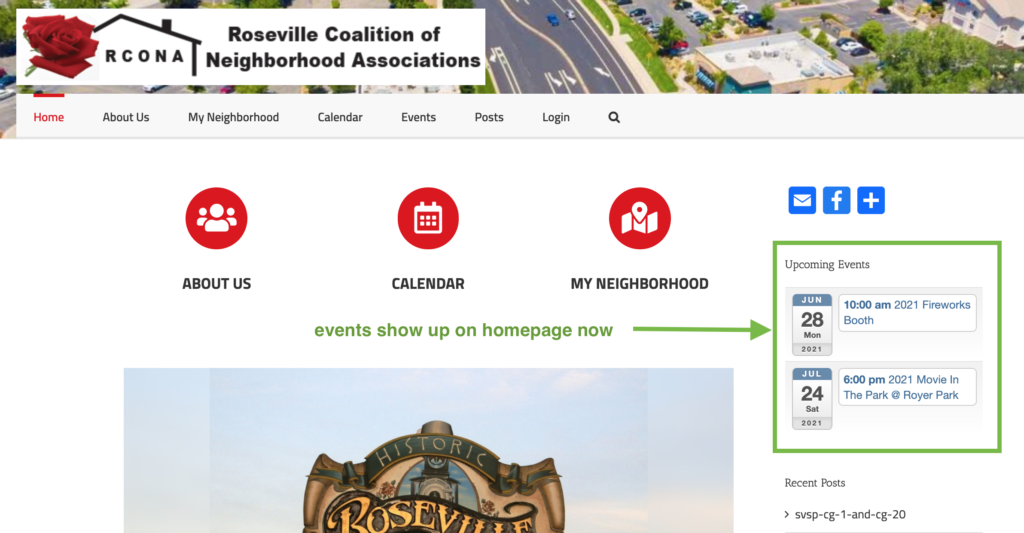
Events show up on the homepage now
On the right hand sidebar of rcona.org, you’ll now see upcoming events if there are any.